Lawnchair’s “Double Tap to Sleep” feature allows users to quickly turn off their device’s screen by double-tapping the home screen. However, some users receive repeated prompts to grant Accessibility permission, even after granting it.
This guide explains why the feature requires Accessibility access, common causes for repeated permission requests, and step-by-step solutions to resolve the issue and restore proper functionality.
What the “Double Tap to Sleep” feature is and why it requires Accessibility permission
The “Double Tap to Sleep” feature lets you turn off your device’s display with a simple double-tap gesture, improving convenience and reducing reliance on physical buttons.
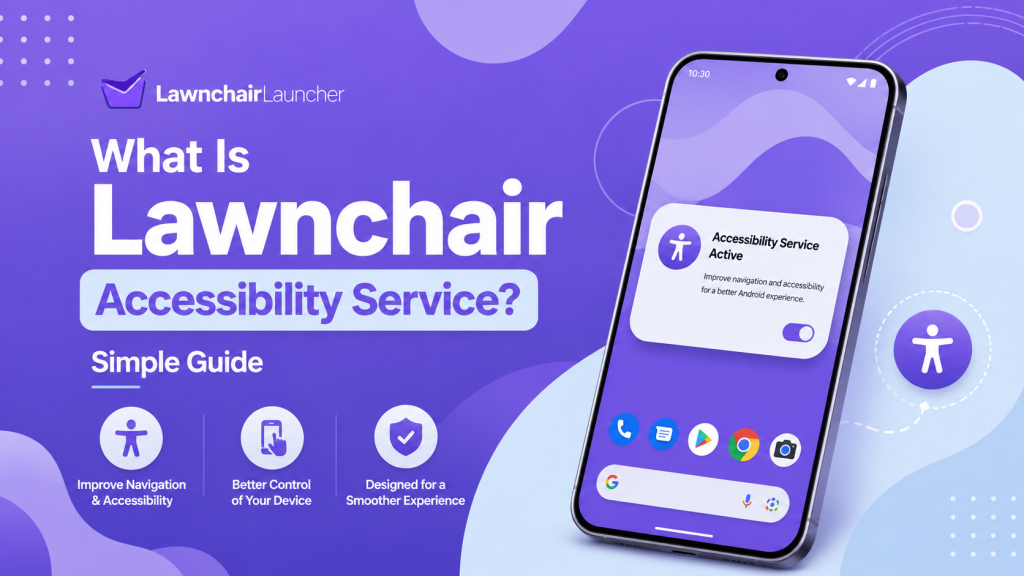
For the feature to work, Lawnchair needs Accessibility permission. This permission allows the app to send a system command to turn off the screen on your behalf. Without it, the app cannot safely interact with the device’s system functions, and the gesture cannot trigger the sleep command.
Repeated prompts often occur when Lawnchair Accessibility permission is revoked, not properly saved, or if the system restricts background access for Lawnchair. Understanding this requirement is crucial before troubleshooting, as the solution typically involves verifying and correctly configuring Accessibility settings on your device.
How Accessibility permission enables the sleep action
The “Double Tap to Sleep” feature relies on Accessibility permission to perform system-level actions that ordinary apps cannot execute. With this permission, Lawnchair can detect the double-tap gesture and issue a command to turn off the device’s screen.
Without Accessibility access, the app cannot interact with the system to trigger the sleep action. Granting this permission ensures the feature works consistently, responding to gestures without requiring manual intervention or physical button presses.
Security and privacy implications of granting the permission
Granting Accessibility permission allows Lawnchair to monitor user interactions and perform actions on your behalf. While necessary for the sleep gesture, it also allows the app to access certain system functions that could affect security if misused.
Users should only grant this permission to trusted apps like Lawnchair. Review the permissions settings on your device to ensure that no unnecessary or unknown apps have similar access, thereby minimizing potential privacy or security risks.
Expected behavior vs the repeated permission prompt
When working correctly, Lawnchair’s “Double Tap to Sleep” feature should only request Accessibility permission once. After granting it, the feature becomes active and allows the device to sleep with a double-tap gesture without further prompts.
However, some users experience repeated permission requests, even after granting access. This usually indicates an issue with permission retention, app settings, or system restrictions, and prevents the feature from functioning smoothly.
What correct behavior looks like (single grant, feature active)
Correct behavior occurs when the app has received one confirmation for Accessibility access, and the “Double Tap to Sleep” feature activates immediately afterward. The user should be able to double-tap the home screen to turn off the display without encountering additional permission dialogs.
Once properly configured, the feature runs consistently in the background, and repeated prompts should no longer appear. Any deviation from this behavior signals a configuration or system issue that needs troubleshooting.
Common symptoms when the prompt keeps appearing
When Lawnchair repeatedly asks for Accessibility permission, users may notice that the “Double Tap to Sleep” feature doesn’t work consistently. The screen may fail to turn off after double-tapping, and the app continues to display permission requests.
Other symptoms include intermittent activation of the feature, app notifications about required permissions, or unexpected behavior after device reboots. These issues can disrupt the user experience and prevent the gesture from functioning reliably.
Typical root causes (permission resets, conflicting services, OS behavior)
Repeated permission prompts are often caused by system-level resets or restrictions. Android may revoke Accessibility permissions after updates, device reboots, or when battery optimization policies interfere with background apps.
Conflicting services or apps that also use Accessibility permissions can trigger repeated requests. Additionally, some custom ROMs or OS versions enforce stricter controls on Accessibility permissions, causing Lawnchair to repeatedly request authorization even after a single grant.
Quick, step-by-step fixes
If Lawnchair repeatedly requests Accessibility permission, several quick fixes can restore proper functionality. These solutions focus on re-granting permissions, verifying system settings, and ensuring no conflicting apps are interfering with the feature.
Following these steps carefully ensures that the “Double Tap to Sleep” gesture works consistently and prevents repeated permission prompts. Most fixes can be completed in a few minutes without requiring a device reset.
How to properly grant Lawnchair Accessibility permission (image)
To correctly grant Accessibility permission:
- Open Settings on your device and navigate to Accessibility.
- Locate Lawnchair under the list of apps requesting Accessibility access.
- Toggle the switch to enable Accessibility permission for Lawnchair.
- Confirm any system prompts to fully authorize the app.
- Return to Lawnchair and test the Double Tap to Sleep feature to ensure it responds without further permission requests.
Following this procedure ensures the app has the necessary permissions to perform the sleep action reliably. Images in the guide illustrate each step for clarity.
Re-enable the gesture inside Lawnchair and verify settings
After granting Accessibility permission, open Lawnchair and navigate to the gestures or home screen settings. Ensure that the “Double Tap to Sleep” gesture is enabled.
Verify any related options, such as sensitivity, delay, or activation areas, to ensure they are configured correctly. Testing the gesture immediately after enabling it confirms that the app recognizes it.
Restart Lawnchair and reboot the device to persist changes
To ensure that permission changes and gesture settings are fully applied, close Lawnchair completely and restart the app.
Additionally, rebooting your device can help ensure the permission is granted and prevent the system from revoking it. After restarting, test the double-tap gesture to confirm that the “Double Tap to Sleep” feature works consistently without repeated prompts.
Advanced troubleshooting steps
If quick fixes do not resolve repeated Accessibility prompts, advanced troubleshooting can help identify the underlying cause. These steps focus on isolating system-level conflicts and ensuring Lawnchair has exclusive access to required permissions.
Advanced methods include reviewing active services, examining app permissions, and checking system optimization settings that may interfere with background processes. Following these steps systematically helps restore consistent functionality.
Identify and disable conflicting apps or accessibility services
Some apps that also use Accessibility services can interfere with Lawnchair’s “Double Tap to Sleep” feature. To troubleshoot, open Settings > Accessibility > Services and review all enabled apps.
Temporarily disable any apps that could conflict, such as screen recorders, automation tools, or other launchers with gesture features. After disabling, test Lawnchair to see if repeated prompts cease, confirming that conflicts were the root cause.
Check Android settings that auto-reset permissions and battery optimization
Some Android versions have automatic permission reset features or aggressive battery optimization settings that can revoke Accessibility access for apps like Lawnchair. Check your device settings under Settings > Apps > Special Access > Auto-Reset Permissions and disable this for Lawnchair.
Additionally, review battery optimization settings and ensure Lawnchair Launcher is excluded. Preventing the system from restricting background access ensures that Accessibility permission remains active and that the “Double Tap to Sleep” feature functions reliably.
Inspect Accessibility service status and capture relevant logs
To further diagnose repeated permission prompts, inspect the Accessibility service status for Lawnchair in your system settings. Confirm that the service is listed as active and enabled.
For persistent issues, capturing logs of the Accessibility service and Lawnchair events can provide insight into why the system is revoking permission. Use logcat or built-in diagnostic tools to collect these logs, which can be shared with the Lawnchair community or developers for precise troubleshooting. Images in the guide illustrate how to locate and monitor these logs.
Reproducing the issue and collecting diagnostic information for a bug report
When Lawnchair repeatedly requests Accessibility permission, creating a detailed bug report can help developers identify and fix the underlying issue. Accurate reproduction of the issue and collection of relevant data ensures that the report is actionable and precise.
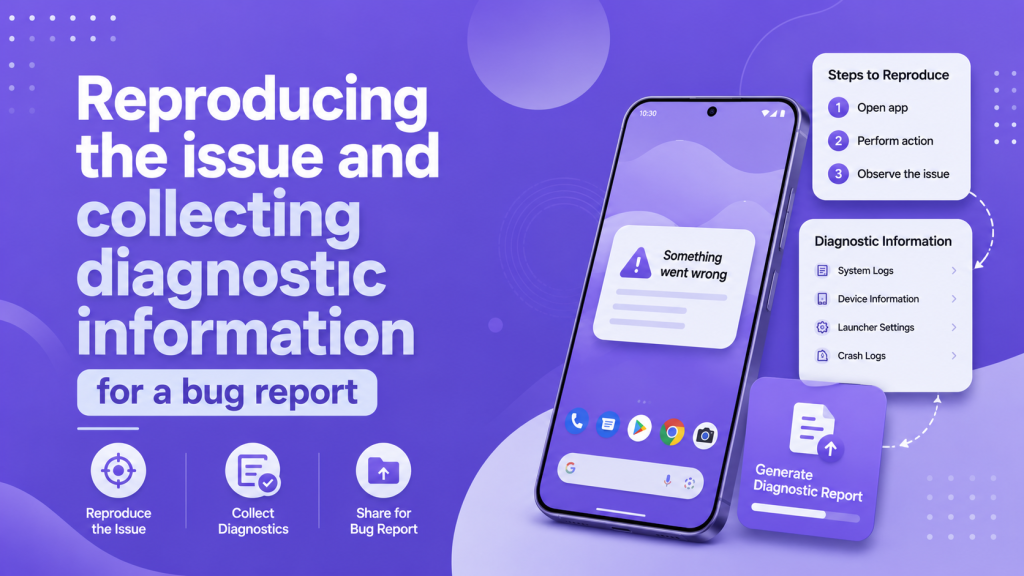
Before submitting a report, confirm that the problem can be reproduced consistently. Include all relevant device information, app versions, and system settings that may affect the behavior. This helps developers pinpoint the root cause quickly.
Minimal reproducible steps to include
Document the smallest sequence of actions that consistently triggers the repeated permission prompt. For example, this may involve rebooting the device, opening Lawnchair, enabling “Double Tap to Sleep,” and observing the prompt.
Include your device model, Android version, Lawnchair version, and any other active Accessibility services. Providing logs or screenshots showing the repeated prompt adds clarity and helps the development team diagnose and resolve the issue efficiently.
Device and environment details to record (Android version, Lawnchair build, OEM)
When reporting repeated Accessibility permission prompts, include comprehensive details about your device and environment. This should include the Android version, the Lawnchair build number, and the device manufacturer (OEM) to help developers identify potential compatibility issues.
Other helpful information includes custom ROMs, system themes, and launcher settings that might influence app behavior. Providing a complete environment snapshot ensures that the bug report is actionable and reduces back-and-forth clarification requests.
Which logs, screenshots, and timestamps help developers
Collect logs from logcat or built-in diagnostic tools that capture events related to Accessibility service activation and Lawnchair actions. Include screenshots of repeated prompts and the feature settings page.
Record timestamps for each occurrence of the repeated permission request, along with the steps taken immediately prior. Combining logs, images, and timestamps provides a clear picture that helps developers identify the root cause and propose a precise fix.
Safe workarounds and alternatives while the issue persists
While troubleshooting repeated Accessibility permission prompts in Lawnchair, you can use temporary workarounds to maintain convenient screen control. These methods allow you to continue using quick sleep gestures without relying on the problematic feature.
It’s important to choose solutions that do not require rooting or granting elevated permissions to untrusted apps, ensuring your device remains secure while the issue is unresolved.
Use a supported shortcut or gesture app as a temporary replacement
As a temporary alternative, install a trusted gesture or shortcut app from the Play Store that can perform the sleep function. Configure it to respond to double-tap gestures or another convenient shortcut to turn off the screen.
Make sure the replacement app is well-reviewed and uses proper Accessibility or system permissions. This provides functionality similar to Lawnchair’s “Double Tap to Sleep” while you investigate or wait for a permanent fix in the launcher.
ADB or automation options for advanced users
Advanced users can use ADB commands or automation tools to temporarily simulate the double-tap sleep action. This approach allows the device to turn off the screen without relying on Lawnchair’s Accessibility permission while troubleshooting.
Automation apps or scripts can be configured to safely trigger the sleep command, but they require familiarity with ADB, task automation, or shell scripting. These solutions should be used carefully to avoid conflicts or unintended system behavior.
When and how to report the bug to Lawnchair developers
If repeated permission prompts persist despite troubleshooting, submit a bug report to the Lawnchair GitHub repository or official support channels. Include a detailed description of the issue, reproduction steps, and all relevant environment details.
Provide the device model, Android version, Lawnchair build, active Accessibility services, and any logs or screenshots illustrating the problem. Clear, concise, and well-documented reports help developers identify the root cause quickly and prioritize a fix for upcoming updates.
Fix: “Double-tap to sleep” keeps asking for Accessibility permission on Android
The “Double-tap to sleep” gesture in Lawnchair lets users quickly turn off their device’s screen with a simple double-tap on the home screen. Some users, however, encounter a problem in which the app repeatedly requests Accessibility permission, preventing the feature from working consistently.
This guide explains the underlying causes, provides step-by-step troubleshooting solutions, and suggests temporary workarounds to restore functionality. It is aimed at Android users who experience persistent permission prompts when using Lawnchair’s sleep gesture.
Quick summary: what this problem looks like and who this guide is for
The issue appears when Lawnchair prompts for Accessibility permission every time the app is opened or after a device reboot, even if it was previously granted. As a result, the “Double-tap to sleep” feature may not respond or work intermittently.
This guide is for Android users who rely on Lawnchair for quick screen-off gestures and are encountering repeated Accessibility permission requests. It covers explanations, common causes, step-by-step fixes, advanced troubleshooting, and safe workarounds for consistent operation.
Why does Android require Accessibility permission for double-tap-to-sleep
The “Double-tap to sleep” feature requires the Accessibility permission because it performs system-level actions that ordinary apps cannot perform. With this permission, Lawnchair can detect gestures and send a command to safely turn off the device’s screen.
Without Accessibility access, the app cannot interact with the system to trigger the sleep action. Android enforces this requirement to protect users from unauthorized apps performing sensitive actions, ensuring that only trusted apps can control device functions like turning off the display.
Common causes of repeated permission prompts
Repeated prompts usually occur when the system revokes Accessibility permission due to software updates, battery optimization settings, or device reboots. Other apps that also use Accessibility services may conflict with Lawnchair, causing the permission request to appear again.
Additionally, custom ROMs, stricter Android versions, or misconfigured launcher settings can prevent the app from retaining granted permissions. These factors cause the “Double-tap to sleep” feature to fail until the permission is properly restored.
Accessibility service not fully enabled or confirmed
One common reason for repeated permission prompts is that Lawnchair’s Accessibility service is not fully enabled. Even if the toggle is turned on, system restrictions or incomplete confirmation can prevent the app from retaining access.
To fix this, open Settings > Accessibility > Lawnchair and ensure the service is active and properly confirmed. Verifying that the app appears in the list of authorized services prevents repeated prompts and ensures the “Double-tap to sleep” feature works consistently.
Battery optimization or background restrictions interrupting the service
Android’s battery optimization and background activity restrictions can interfere with Accessibility services. If Lawnchair is restricted, the system may revoke permission when the app is idle, resulting in repeated requests.
Disabling battery optimization for Lawnchair and allowing unrestricted background activity ensures that the Accessibility service remains active. This prevents the system from interrupting the sleep gesture functionality, allowing the feature to respond reliably.
Conflicting accessibility services or OEM customizations
Repeated Accessibility permission prompts can also occur when other apps or system features use Accessibility services that conflict with Lawnchair. Screen recorders, automation tools, or alternative launchers with gesture functions may trigger interference.
Some OEMs implement custom Android modifications that enforce stricter controls over Accessibility access. These customizations can cause Lawnchair to repeatedly request permission, even if it was previously granted, until conflicts are resolved or conflicting services are disabled.
Permission resets after system or app updates
Android updates, security patches, or launcher updates may reset permissions that were previously granted, including Accessibility access. This behavior causes Lawnchair to prompt for permission again upon first use after the update.
To prevent repeated prompts, users should re-enable the service and verify the settings after any system or app update. Ensuring that Lawnchair is excluded from battery optimization and background restrictions also helps maintain persistent permission.
App installation source or corrupted app data
Repeated prompts for Accessibility permission may be caused by installing Lawnchair from an unofficial source or having corrupted app data. Side-loaded APKs or interrupted installations can prevent the system from properly registering granted permissions.
Clearing the app cache and data, or reinstalling Lawnchair from the official source, ensures that all settings and permissions are correctly initialized. This helps resolve issues caused by incomplete or corrupted installations and prevents repeated permission requests.
Step-by-step fixes (ordered from simplest to advanced)
Start by checking that Accessibility permission is enabled in the system settings for Lawnchair. Toggle the service on and off as needed, and verify that the app appears as an authorized service.
Next, disable battery optimization and background restrictions for Lawnchair to prevent the system from revoking the permission. Also, temporarily disable other apps that may use Accessibility services to eliminate conflicts.
If issues persist, clear Lawnchair’s app cache and data or reinstall the app from an official source to reset permissions. Advanced users can use ADB commands or automation scripts to trigger the sleep action while troubleshooting.
Finally, test the “Double-tap to sleep” feature after each step to ensure the fix resolves the repeated permission prompts before proceeding to more advanced solutions.
Re-enable and confirm the Accessibility permission
To ensure the “Double-tap to sleep” feature works consistently, open Settings > Accessibility > Lawnchair and verify that the service is enabled. If it already appears active, toggle it off and back on to reconfirm permission.
After re-enabling, test the gesture to confirm that Lawnchair can access system functions. This step helps prevent repeated permission prompts and ensures that the feature responds reliably.
Turn off battery optimization for the app
Android’s battery optimization can revoke permissions for background apps, causing repeated prompts. Navigate to Settings > Battery > Battery Optimization, locate Lawnchair, and set it to Not Optimized or Allow Background Activity.
Disabling battery optimization ensures that Lawnchair retains Accessibility access at all times, allowing the double-tap gesture to function correctly even when the device is idle or under battery-saving conditions.
Allow the app to run in the background / lock it in recent apps (image)
To maintain consistent functionality for the “Double-tap to sleep” feature, ensure that Lawnchair is allowed to run in the background. Some Android versions close background apps aggressively, which can revoke Accessibility permissions.
Locking the app in the recent apps list prevents the system from closing it automatically. This ensures that the app remains active and the gesture continues to work reliably, even when switching between apps or after periods of inactivity.
Disable or remove conflicting accessibility services
Other apps that use Accessibility services can conflict with Lawnchair, causing repeated permission prompts. Identify any apps that may also access gestures, screen controls, or automation features.
Temporarily disable or uninstall these conflicting services to test whether Lawnchair retains its permission. Once conflicts are removed, the double-tap gesture should function without interruption.
Reinstall or update the app from the Play Store and re-grant permissions
If Lawnchair repeatedly requests Accessibility permission, reinstalling or updating the app from the Google Play Store can resolve issues caused by corrupted files or incomplete installations.
After reinstalling, open Settings > Accessibility > Lawnchair and grant the necessary permissions again. This ensures that the system properly registers the app and that the “Double-tap to sleep” feature functions reliably.
Clear app cache and storage, then re-enable the service
Clearing Lawnchair’s app cache and storage removes temporary or corrupted data that may interfere with permission retention. Navigate to Settings > Apps > Lawnchair > Storage and select Clear Cache and Clear Storage.
Once cleared, re-enable the Accessibility service in the system settings and test the double-tap gesture. This approach helps reset the app’s internal state and often resolves repeated permission prompts.
Verify system settings: Accessibility → [App] → Permissions and accessibility shortcuts
Ensure that Lawnchair has all required Accessibility permissions enabled. Navigate to Settings > Accessibility > Lawnchair and confirm that the service is active.
Check any accessibility shortcuts or gesture options that might interfere with the double-tap functionality. Confirming these settings helps prevent repeated prompts and guarantees the “Double-tap to sleep” feature works consistently across device restarts.
Advanced troubleshooting
If the issue persists despite verifying settings and permissions, consider advanced methods such as inspecting logcat outputs for repeated permission requests, identifying system-level restrictions, or using ADB commands to test gesture functionality.
These advanced steps are intended for users familiar with Android system tools and developer options. They help isolate conflicts, capture diagnostic data, and provide detailed information for community or developer support if needed.
Test in Safe Mode to rule out third-party conflicts
Booting your device into Safe Mode temporarily disables all third-party apps, allowing you to determine if a conflicting app is causing repeated Accessibility permission prompts.
If the “Double-tap to sleep” feature works correctly in Safe Mode, a third-party app or service is likely interfering. This information helps you identify and remove or adjust the conflicting application to restore normal functionality.
Capture logs or a bug report (what to include for developers)
When reporting persistent issues, gather detailed logs and information to assist developers. Include device model, Android version, Lawnchair build, enabled Accessibility services, and reproduction steps.
Screenshots of repeated permission prompts, timestamps, and any relevant system messages provide additional context. Collecting this information ensures that developers can accurately diagnose the issue and provide a targeted fix.
What information to include: steps to reproduce, device model, Android version, app version, screenshots/logs
A useful bug report should include step-by-step instructions to reproduce the repeated Accessibility permission prompt. Clearly document every action taken leading to the issue.
Include your device model, Android version, and Lawnchair app version to provide context. Adding screenshots or log files of the repeated prompt and gesture settings helps developers understand the problem and diagnose it accurately.
How to create a minimal reproducible case and where to submit it
A minimal reproducible case involves isolating the steps that consistently trigger the permission prompt, without extra variables. For example, reboot the device, enable the double-tap gesture, and note if the prompt appears.
Submit this information to the official Lawnchair GitHub repository or support channels. Providing a clear, concise reproduction case increases the likelihood of a timely and effective fix from the development team.
Preventive tips to keep Accessibility permissions stable
Maintaining stable Accessibility permissions ensures that Lawnchair’s “Double tap to sleep” feature works reliably. Following preventive practices reduces the likelihood of repeated permission prompts and improves the overall user experience.
These tips focus on proper permission management, system settings, and minimizing conflicts with other apps or system restrictions.
Best practices for granting and maintaining Accessibility permissions
Always grant Accessibility permission through the system settings, ensuring the service is fully enabled and confirmed. Avoid granting permissions via side-loaded apps or shortcuts, as they may not register properly with the system.
Exclude Lawnchair from battery optimization and background restrictions, and periodically verify that the service remains active after system updates. Additionally, minimize simultaneous use of other apps that require Accessibility services to prevent conflicts and maintain stable functionality.
Recommended battery and background app settings for persistent services
To keep Lawnchair’s “Double-tap to sleep” feature running reliably, adjust your device’s battery and background app settings. Exclude Lawnchair from battery optimization to prevent the system from restricting background activity.
Ensure that the app is allowed to run continuously in the background and, if available, that it is pinned to the recent apps list. These adjustments help maintain persistent access to the Accessibility service and prevent repeated permission prompts, ensuring the gesture works consistently even after reboots or periods of inactivity.
Conclusion
Lawnchair’s “Double-tap to sleep” feature provides a convenient way to turn off your device screen with a simple gesture. Repeated Accessibility permission prompts are typically caused by system restrictions, conflicting apps, or misconfigured settings.
By carefully granting and verifying permissions, adjusting battery and background app settings, and following troubleshooting steps, you can restore consistent functionality. Implementing preventive practices ensures that the gesture remains reliable, allowing users to enjoy the convenience of quick screen-off actions without repeated interruptions.
FAQs
Why does Lawnchair keep asking for Accessibility permission?
Repeated prompts usually occur when the system revokes permissions due to updates, battery optimization, or conflicts with other apps that use Accessibility services.
How can I ensure the “Double Tap to Sleep” feature works reliably?
Grant Accessibility permission properly, verify the service is active, and adjust battery and background app settings to maintain persistent access.
Can I use alternative apps while troubleshooting?
Yes, trusted gesture or shortcut apps can temporarily replace the feature, allowing you to turn off the screen without relying on Lawnchair.
When should I report the issue to Lawnchair developers?
Submit a report if repeated prompts persist despite verifying permissions and settings. Include device details, Android version, Lawnchair build, reproduction steps, and logs or screenshots to help developers resolve the issue.
Latest post