How to Use Lawnchair Launcher on Android
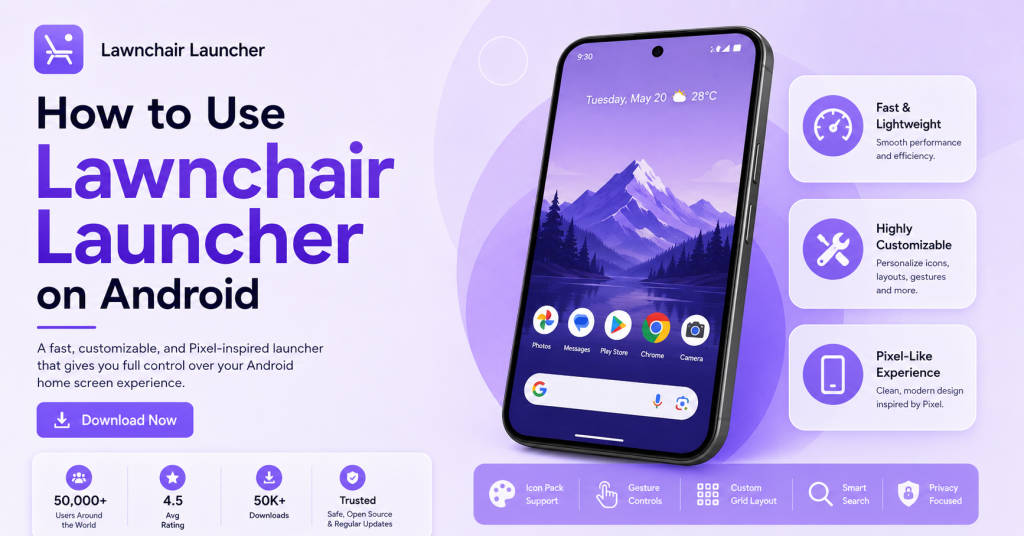
Lawnchair Launcher gives Android users a clean, customizable home screen with a Pixel-style design. It allows you to change icons, grids, widgets, gestures, the app drawer, and other visual settings.
To use Lawnchair, install the app, set it as your default launcher, and open Home Settings to begin customization. The exact options may vary slightly depending on your Lawnchair version and Android device.
This guide explains how to set up Lawnchair, customize its main features, fix common problems, and return to your original launcher when needed.
What Is Lawnchair Launcher?
Lawnchair Launcher is an open-source Android home screen app based on the clean design of the Pixel Launcher. It replaces your phone’s standard launcher and gives you greater control over the appearance and behavior of the home screen.
With Lawnchair, you can customize app icons, grid size, folders, widgets, gestures, the dock, search bar, and app drawer. It is suitable for users who want a simple Pixel-style interface without losing advanced customization options.
The launcher does not remove your apps or personal files. It only changes how your home screen, app drawer, and navigation features are displayed.
How to Install and Start Lawnchair Launcher
First, download and install Lawnchair Launcher on your Android device. Once the installation is complete, open the app and allow any permissions required for features such as notifications, widgets, or gestures.
Next, set Lawnchair as your default Home app. You can usually do this by opening Settings > Apps > Default Apps > Home App and selecting Lawnchair from the available options.
After setting it as the default launcher, press the Home button or use the home gesture. Lawnchair will open automatically, and you can begin arranging apps, adding widgets, changing icons, and adjusting the layout through Lawnchair Home Settings.
Download and Install Lawnchair
Download Lawnchair Launcher from a trusted source and install it on your Android device. After the installation is complete, open the app so Android can load the launcher and display the initial setup options.
Read the permission requests carefully before allowing access. Features such as notification dots, widgets, app shortcuts, and certain gestures may need extra permissions to work properly.
Once Lawnchair opens, you may see a basic home screen layout. You can continue using the default design or customize it later through Lawnchair Home Settings.
Set Lawnchair as the Default Launcher
To use Lawnchair as your main home screen, open Settings > Apps > Default Apps > Home App. Select Lawnchair from the list of installed launchers.
On some Android phones, the same setting may appear under Default Launcher, Home Screen, or Launcher App. The wording can vary depending on the phone brand and Android interface.
After selecting Lawnchair, press the Home button or use the home gesture. Lawnchair should now open automatically whenever you return to the home screen.
If Android asks whether you want to use Lawnchair once or always, choose Always. This confirms Lawnchair as the default launcher until you change it later.
How to Open and Use Lawnchair Settings
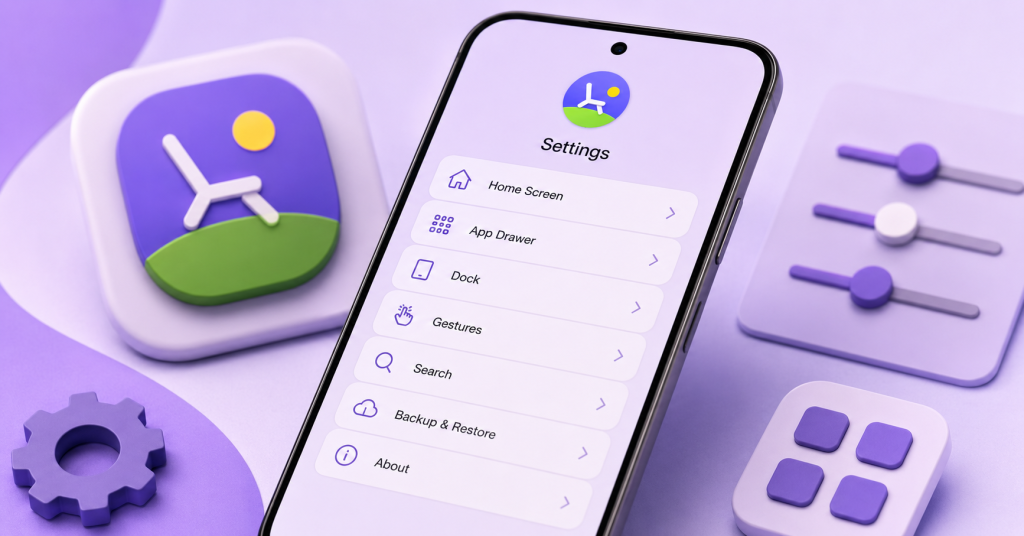
Lawnchair Settings is the main control area for changing the launcher’s appearance and behavior. From this menu, you can adjust the home screen, app drawer, dock, icons, gestures, widgets, search bar, and other layout options.
Most settings are grouped into clear sections, making it easier to customize one part of the launcher at a time. Changes usually appear immediately, so you can test different options and keep the layout that works best for you.
Access Home Settings
Go to the Lawnchair home screen and press and hold an empty area. A small menu will appear with options such as Wallpapers, Widgets, and Home Settings.
Tap Home Settings to open the main Lawnchair configuration menu. You can also look for the Lawnchair Settings app icon in the app drawer if it is available on your device.
From Home Settings, select the section you want to customize. Return to the home screen after making changes to check how the new layout, icons, gestures, or widgets look.
Understand the Main Settings Sections
Lawnchair Settings is divided into different sections for the home screen, app drawer, dock, icons, gestures, search, and general appearance. Each section controls a specific part of the launcher.
The home screen settings manage the grid, icon size, labels, folders, and page layout. App drawer options control how installed apps are displayed, searched, and organized.
The appearance section allows you to change themes, colors, icon shapes, and background effects. Gesture settings let you assign actions to swipes, taps, and other movements.
Review each section before making major changes. This helps you understand which options affect the home screen and which settings control the app drawer or system behavior.
Customize Icons and Appearance
Lawnchair allows you to change the visual style of your home screen without affecting your installed apps. You can apply icon packs, adjust icon shapes, change labels, and modify theme settings.
These options help create a cleaner, more consistent layout. You can use a simple Pixel-style design or create a more personalized home screen with your preferred colors and icons.
Apply an Icon Pack
Install a compatible icon pack on your Android device, then open Lawnchair Settings. Go to the icon or appearance section and select the installed icon pack.
Lawnchair will apply the new icons across the home screen and app drawer. Some apps may keep their original icons if the selected pack does not include a matching design.
You can switch to another icon pack or return to the system icons at any time. Check the home screen after applying the pack to make sure the icons remain clear and easy to recognize.
Change Individual App Icons
Lawnchair lets you change the icon of a single app without applying a complete icon pack. Press and hold the app icon on the home screen, then tap the edit or customize option.
Tap the current icon and choose another icon from the available system icons or installed icon packs. You can also change the app label if you want a shorter or cleaner name.
This option is useful when one app icon does not match the rest of your setup. Repeat the same process whenever you want to restore the original icon or select a different design.
Adjust Theme, Colors, and Background Effects
Open Lawnchair Settings and go to the appearance or theme section. From there, you can adjust light or dark mode, accent colors, icon shapes, and other visual options.
You may also be able to change the background style of folders, the app drawer, the dock, or the search bar. Some versions can use wallpaper colors to create a more consistent appearance.
Keep text and icons easy to read when choosing colors or transparency effects. A simple color combination usually creates a cleaner and more balanced home screen.
Change Individual App Icons
Lawnchair lets you change an app’s icon without applying a new icon pack to the entire launcher. Press and hold the app icon, then select the edit or customization option.
Tap the current icon and choose a replacement from the system icons or an installed icon pack. You can also rename the app label to create a cleaner home screen.
This feature is useful when a single icon does not match the rest of your design. You can restore the original icon at any time by opening the same editing menu.
Adjust Theme, Colors, and Background Effects
Open Lawnchair Settings and go to the theme or appearance section. Here, you can adjust light or dark mode, accent colors, icon shapes, and other visual settings.
You can also change the appearance of folders, the app drawer, the dock, and the search bar. Some options may use wallpaper colors to create a more consistent design.
Choose colors and effects that keep text and icons easy to read. Avoid excessive transparency or too many contrasting colors, as this can make the home screen look crowded.
Customize the Dock and Search Bar
The dock keeps your most-used apps available at the bottom of the home screen. Lawnchair lets you control its size, layout, icon count, and overall appearance.
You can also customize the search bar by changing its position, style, or visibility. These options help create a cleaner and more practical home screen.
Change Dock Size and Layout
Open Lawnchair Settings and go to the dock section. Adjust the number of icons, icon size, spacing, and dock height according to your preferred layout.
You can add important apps to the dock by dragging them from the home screen or app drawer. Remove an app by pressing and holding its icon, then dragging it outside the dock.
Keep only frequently used apps in this area. A simple dock is easier to use and keeps the lower part of the home screen organized.
Add or Remove the Search Bar
Open the home screen or dock settings and locate the search bar option. Enable it if you want quick access to app or web search.
You can disable the search bar for a more minimal layout. Depending on the available settings, you may also change its position, shape, provider, and visual style.
After making changes, return to the home screen and check that the search bar remains easy to access without covering important icons or widgets.
Set Up Lawnchair Gestures
Lawnchair gestures let you perform common actions through swipes, taps, and other movements on the home screen. They can make navigation faster and reduce the need to open menus manually.
Open Lawnchair Settings and go to the Gestures section. Review the available actions and assign only the shortcuts that are useful for your daily routine.
Assign Swipe and Tap Actions
Select a gesture such as swipe up, swipe down, double tap, or two-finger swipe. Then choose the action you want Lawnchair to perform.
You can assign actions such as opening the app drawer, showing notifications, locking the screen, launching an app, or opening system settings. Available options may vary by Lawnchair version and device permissions.
Test each gesture after saving it. Avoid assigning similar actions to multiple gestures because this can make the launcher harder to use.
Use Gestures for Notifications and App Access
A swipe-down gesture can provide quick access to the notification panel without reaching the top of the screen. This can be useful on phones with large displays.
You can also assign a swipe or tap action to open a frequently used app, the app drawer, search, or another shortcut. Choose actions that reduce unnecessary steps and improve daily navigation.
Some gesture actions may require accessibility or other permissions. Allow only the permissions needed for the feature you plan to use.
Fix Common Lawnchair Launcher Problems
Lawnchair may occasionally face issues with default launcher settings, gestures, icons, or widgets. These problems are often caused by missing permissions, battery restrictions, outdated app data, or conflicts with the phone’s system launcher.
Start by restarting Lawnchair and checking its permissions. If the issue continues, review the relevant settings and restart the phone after making changes.
Lawnchair Does Not Stay as the default
Open Settings > Apps > Default Apps > Home App and confirm that Lawnchair is selected. If another launcher is active, select Lawnchair again.
Disable battery optimization and allow background activity for Lawnchair. Some Android devices may reset the default launcher when aggressive battery-saving settings force the app to close.
Restart the phone and check the Home App setting again. Also, make sure that no security or device optimization tool is automatically restoring the original launcher.
Gestures Do Not Work Properly
Open Lawnchair Settings > Gestures and confirm that each gesture has an action assigned. Test the gestures from an empty area of the home screen.
Some actions may require access, notification, or screen lock permissions. Open Lawnchair’s App Info page and allow only the permissions required for the gesture.
System navigation gestures may also conflict with launcher gestures. Try changing the assigned action or using a different swipe or tap gesture.
Icons or Widgets Do Not Display Correctly
Remove the affected icon or widget from the home screen and add it again. Restart Lawnchair if the item remains blank, outdated, or incorrectly sized.
For icon problems, reapply the icon pack or restore the app’s original icon. Make sure the selected icon pack includes a design for the affected app.
For widget issues, confirm that the related app is installed, enabled, and allowed to run in the background. Resize the widget or restart the phone if it still does not display correctly.
Frequently Asked Questions
Is Lawnchair Launcher safe to use?
Yes. Lawnchair is designed to work as an Android home screen replacement. It changes the launcher interface but does not delete your apps, photos, files, or other personal data.
Does Lawnchair Launcher require root access?
No. Most Lawnchair features work without root access. You can install it, set it as the default launcher, and customize the home screen on a standard Android device.
Can I use icon packs with Lawnchair?
Yes. Install a compatible icon pack, then open Lawnchair Settings and select it from the icon or appearance section. You can also change individual app icons separately.
Why does Lawnchair not stay as the default launcher?
This may happen because of battery restrictions, background limits, or system optimization settings. Recheck the default Home App option and allow Lawnchair to run in the background.
Can I return to my original launcher?
Yes. Open Settings > Apps > Default Apps > Home App and select your phone’s original launcher. Your apps and personal files will remain unchanged.
Conclusion
Lawnchair Launcher gives you greater control over the appearance and behavior of your Android home screen. You can customize icons, gestures, widgets, the dock, search bar, and other layout options.
Start with the basic settings, then adjust each feature according to your needs. If a problem appears, check permissions, battery settings, and the default Home App option. You can return to the original launcher at any time
Latest Post: