How to Hide Apps in Lawnchair Launcher on Android
Lawnchair gives Android users more control over the appearance and organization of their home screen. It is a free, open-source home app built on Launcher3, the same foundation used by the default home screen on stock Android devices.
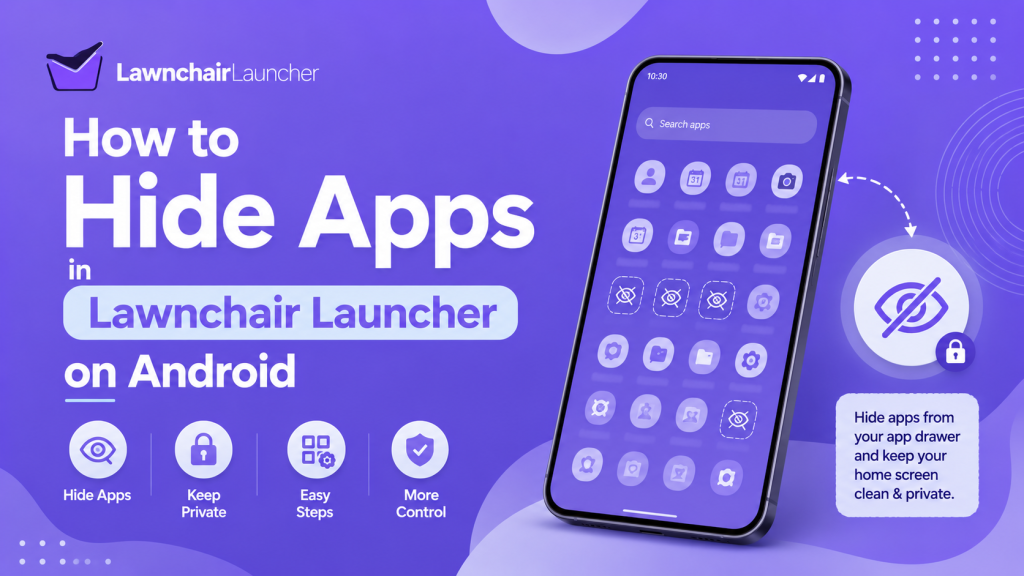
One useful Lawnchair feature is the ability to hide apps from the app drawer. It can help you remove unwanted icons, reduce clutter, and keep less-used applications out of the main app list.
Hiding an application in Lawnchair does not uninstall it. The app remains installed on your phone, keeps its saved data, and may continue running when permitted. Lawnchair only removes its visible shortcut from the app drawer.
The exact setting name can vary between Lawnchair versions. You may find it under App Drawer, Drawer, Hidden Apps, or Hidden App Shortcuts. This guide explains how to hide apps, access them later, restore hidden icons, and fix common problems.
What Happens When You Hide an App in Lawnchair?
When you hide an app in Lawnchair, its icon disappears from the standard Lawnchair app drawer. This creates a cleaner app list without removing the actual application from your device.
The app remains available through Android Settings, notifications, widgets, existing home screen shortcuts, or other supported search methods. Whether a hidden app appears in the launcher search depends on the Lawnchair version and its search settings.
Lawnchair’s public issue discussions show that hidden-app behavior has changed and continues to develop. Some versions can search hidden apps when the correct option is enabled, while users have also requested easier ways to access all hidden applications.
Hiding apps should therefore be treated as an organizational feature, not a complete privacy or security system.
How to Hide Apps in Lawnchair
The main method is available through Lawnchair Home Settings. You first open the app drawer configuration, locate the hidden-app option, and select the applications you no longer want displayed.
Before starting, make sure Lawnchair is selected as your default launcher. This ensures you are editing the correct home screen and app drawer rather than the interface provided by your phone’s original launcher.
Open Lawnchair Home Settings
Go to the Lawnchair home screen and press and hold an empty area. A small menu should appear with options related to wallpapers, widgets, and Home Settings.
Tap Home Settings to open the main Lawnchair Launcher configuration panel. Depending on the release you use, the names and positions of some options may look slightly different.
If the menu does not appear, confirm that Lawnchair is currently set as your default Home app. You can usually check this through:
Settings > Apps > Default Apps > Home App
Select Lawnchair and return to the home screen.
Open the App Drawer Settings
Inside Home Settings, look for an option named App Drawer or Drawer. Open it to manage how applications are organized and displayed.
This section may include settings for the drawer background, search bar, icon size, labels, folders, tabs, and hidden apps. Lawnchair 15 introduced app drawer folders and additional drawer customization, so the interface can differ from older releases.
Scroll through the available options until you find Hidden Apps, Hidden App Shortcuts, or a similarly named setting.
Select the Apps You Want to Hide
Open the hidden-app list. Lawnchair should display the applications currently installed on your Android phone.
Tap or check each application you want to remove from the app drawer. The selected apps may receive a checkmark, switch, or highlighted state.
Return to the app drawer after making your selections. The chosen icons should no longer appear in the normal app list.
If an icon remains visible, close the app drawer and reopen it. You can also restart Lawnchair or restart the phone to refresh the launcher interface.
Hide an App Using Its Shortcut Menu
Some Lawnchair versions may also let you hide an app through its shortcut or customization menu. This method can be quicker when you only need to remove one application.
Open the app drawer and press and hold the app icon. Look for an option such as Customize, App Info, Hide, or a pencil-shaped edit icon.
Select the available hide option and confirm the change. The app shortcut should disappear from the drawer.
This option is not available in every Lawnchair build. Use the Home Settings method when the shortcut menu does not include a hide command.
How to Access Hidden Apps in Lawnchair
A hidden app remains installed, but opening it may require a different method because its normal drawer shortcut has been removed.
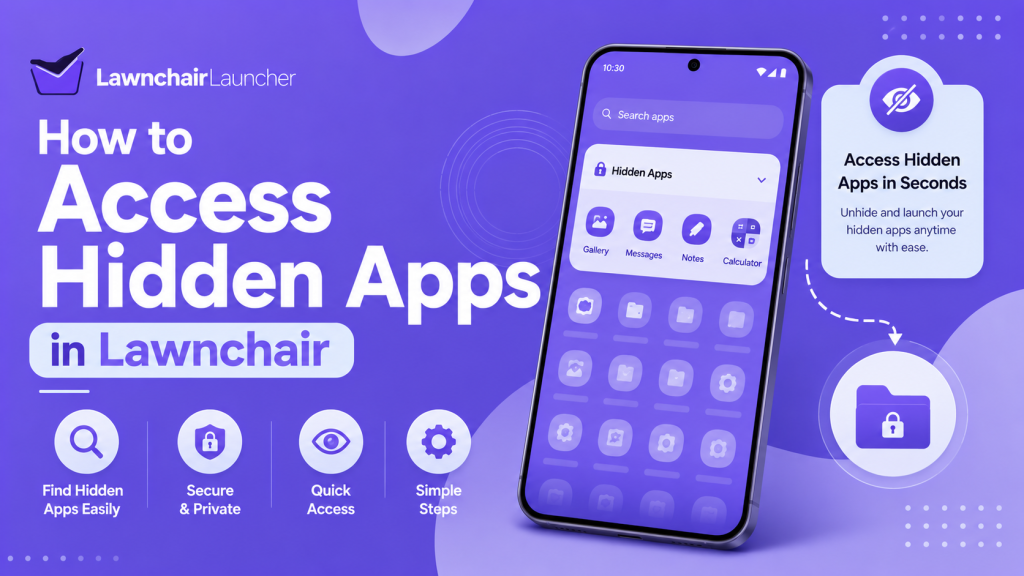
The available method depends on your Lawnchair version, search settings, and Android configuration. Lawnchair development discussions indicate that access to hidden applications has received multiple feature requests and changes.
Use Lawnchair Search
Open the app drawer and use the search field to enter the hidden app’s name. In supported configurations, Lawnchair may show the hidden application in search results.
Some versions provide a separate setting that controls whether hidden apps can appear in app drawer searches. A Lawnchair project response directs users to the app drawer search setting for this behavior.
Open Lawnchair Home Settings and review the app drawer search options if the hidden app does not appear.
Allowing hidden apps in search makes them easier to access, but also less private. Anyone using the phone can find them by typing their names.
Open the App Through Android Settings
Open your phone’s Settings and go to Apps or App Management. Find the hidden application in the installed apps list.
Its App Info screen may include an Open button. Tap it to launch the app without restoring its Lawnchair drawer shortcut.
The wording and location of this option can differ by phone manufacturer and Android version.
Use an Existing Home Screen Shortcut
Hiding an app from the drawer may not automatically remove a shortcut already placed on your home screen. If the shortcut remains available, you can use it to open the application normally.
Remove the home screen shortcut separately when you want the app hidden from both the drawer and desktop.
Long-press the shortcut and select Remove, or drag it to the removal area. Avoid selecting Uninstall unless you want to remove the application completely.
Open the App from a Notification
Applications that send notifications can often be opened by tapping one of their notifications. Hiding the app from Lawnchair does not necessarily disable notifications.
You can manage notifications through the application’s App Info page if you do not want hidden apps to appear in the notification panel.
How to Unhide Apps in Lawnchair
You can restore a hidden application at any time. Unhiding it only returns its shortcut to the app drawer and does not affect its data.
Open the Lawnchair home screen and press and hold an empty area. Select Home Settings, then open App Drawer or Drawer.
Choose Hidden Apps or Hidden App Shortcuts. Locate the application you want to restore, then remove its checkmark or disable the Hide switch.
Return to the app drawer. The application should appear in the normal list again.
Restart Lawnchair if the restored icon does not appear immediately. You can also clear the launcher cache, but avoid clearing Lawnchair storage unless necessary because doing so may reset your layout and customization settings.
Hide Apps Without Removing Home Screen Icons
Some users want an application removed from the drawer while keeping a shortcut on the desktop. Lawnchair may allow this because app drawer visibility and home screen placement are managed separately.
Place the application shortcut on your home screen before hiding it. Then hide the app through the drawer settings.
After the change, the icon may remain on the home screen while disappearing from the full app list. Test this behavior on your Lawnchair version because some builds may handle shortcuts differently.
This arrangement works well for apps you use regularly but do not want included in a crowded drawer.
Does Lawnchair Password-Protect Hidden Apps?
Hiding an app in Lawnchair generally removes its launcher shortcut, but it does not automatically set the application to require a password, PIN, or fingerprint lock.
A request for protected apps using passwords or biometrics was still presented as a proposed feature in Lawnchair’s public project tracker, rather than a standard hidden-app capability.
Someone with access to your unlocked phone may still find a hidden app through Android Settings, launcher search, notifications, recent apps, widgets, or another installed launcher.
For sensitive applications, use Android’s built-in Private Space, Secure Folder, app lock, or another security feature provided by the phone manufacturer. Availability and behavior depend on the device and Android version.
Hidden Apps vs Uninstalled Apps
A hidden app remains installed. It continues using storage and keeps its local data. It may also run background tasks, receive updates, display notifications, and use permissions.
An uninstalled app is removed from the device along with most of its locally stored application data. You normally need to download and install it again before using it.
Use Lawnchair’s hide feature when you only want to reduce clutter or remove an icon from view. Use Android’s uninstall option when you no longer need the application.
Common Problems When Hiding Apps in Lawnchair
The feature is usually straightforward, but differences between Lawnchair releases can cause confusion. The following checks can resolve the most common problems.
Hidden Apps Still Appear in Search
Open Lawnchair Home Settings and review the app drawer search options. Disable any setting that allows hidden applications to appear in search results.
Restart Lawnchair after changing the option. Remember that hiding an app from Lawnchair search may not remove it from Android Settings, device-wide search, notifications, or recent apps.
The Hidden Apps Option Is Missing
First, confirm that Lawnchair is the active home app. You may accidentally be viewing the settings of your phone’s stock launcher.
Next, check the Drawer, App Drawer, and drawer group settings. Older and newer Lawnchair builds may place the option in different sections.
Your installed build may also lack the feature or use a different implementation. Lawnchair’s current development includes significant changes between major releases, including app drawer updates and new customization options.
A Hidden App Returns to the Drawer
Open the hidden-app list and confirm that the application remains selected. A launcher update, a restored backup, clearing app storage, or a configuration reset may have changed the setting.
Hide the application again and restart Lawnchair. Also, check whether you have multiple copies, work-profile versions, or private-profile versions of the same app.
The Wrong App Was Hidden
Return to Home Settings > App Drawer > Hidden Apps and review the selected applications.
Remove the checkmark from the incorrect app and select the intended one. Applications with similar names or duplicate work-profile icons can be easy to confuse.
Lawnchair Crashes After Changing Drawer Settings
Restart the phone and reopen Lawnchair. If the problem continues, open Android Settings, select Lawnchair from the app list, and clear its cache.
Do not clear the launcher’s storage before creating a backup. Clearing storage can remove the home screen layout, folders, gestures, hidden-app selections, and other preferences.
Tips for Organizing Hidden Apps
Hide only applications that create unnecessary drawer clutter. Hiding too many apps can make them difficult to find later.
Keep system tools visible unless you already know another reliable way to open them. Important apps such as settings, security tools, password managers, and authentication apps should remain easy to access.
Create folders or drawer categories for applications that only need better organization. Lawnchair 15 added app drawer folders, providing another way to manage crowded app lists without hiding everything.
Review your hidden-app list occasionally. Restore applications you now use regularly and uninstall apps that are no longer required.
Frequently Asked Questions
Does hiding an app delete its data?
No. Hiding removes the app’s shortcut from the Lawnchair drawer. The application, account information, settings, and saved data remain on the device.
Can hidden apps still send notifications?
Yes. Hiding an app does not normally disable its notifications. Open the app’s notification settings to stop them.
Can I hide system apps in Lawnchair?
Lawnchair may display supported system apps in its hidden-app list. However, hiding a system app does not disable or uninstall it.
Can someone still find my hidden apps?
Yes. Hidden apps may remain accessible through Android Settings, search, notifications, recent apps, widgets, or another launcher. Lawnchair’s hide option should not be treated as a security lock.
How do I find the hidden-app list?
Press and hold an empty area on the Lawnchair home screen, open Home Settings, and look inside App Drawer or Drawer for Hidden Apps or Hidden App Shortcuts.
Why are hidden apps visible in Lawnchair search?
Some configurations allow hidden apps to appear in search for easier access. Review the app drawer search settings and disable hidden-app search when available.
Will hidden apps return after updating Lawnchair?
They should normally remain hidden, but major updates, restored backups, storage resets, or configuration changes can affect launcher preferences. Check the hidden-app list after an update if an icon returns.
Conclusion
Learning how to hide apps in Lawnchair can make your Android app drawer cleaner and easier to navigate. Open Home Settings, enter the App Drawer or Drawer section, select Hidden Apps, and choose the applications you want removed from view.
Hidden apps remain installed and can still be accessible through search, Android Settings, notifications, shortcuts, or other methods. The feature is therefore best suited to an organization rather than strong privacy protection.
You can restore an app by returning to the hidden-app list and deselecting it. If the setting is missing or not working correctly, check your Lawnchair version, drawer settings, active default launcher, and app search configuration.
Use folders and drawer categories for apps that only need better organization. Reserve the hide feature for shortcuts you genuinely do not need in your everyday app list.
Latest post