How to Use Lawnchair V2 on Android
Lawnchair V2 is a customizable Android launcher that gives your device a clean, Pixel-style home screen. It allows you to adjust icons, widgets, folders, themes, gestures, and the app drawer without changing your Android system.
To start using Lawnchair V2, install the launcher and set it as your default Home app. You can then open Home Settings by pressing and holding an empty area on the home screen.
This guide explains how to set up Lawnchair V2, customize its main features, manage your layout, and fix common problems.
What Is Lawnchair V2?
Lawnchair V2 is a customizable Android launcher based on the clean design of the Pixel Launcher. It changes the appearance and organization of your home screen without modifying the Android operating system.
It allows you to manage icons, widgets, folders, themes, gestures, the app drawer, and the dock. You can also switch back to your original launcher whenever needed.
How to Install Lawnchair V2
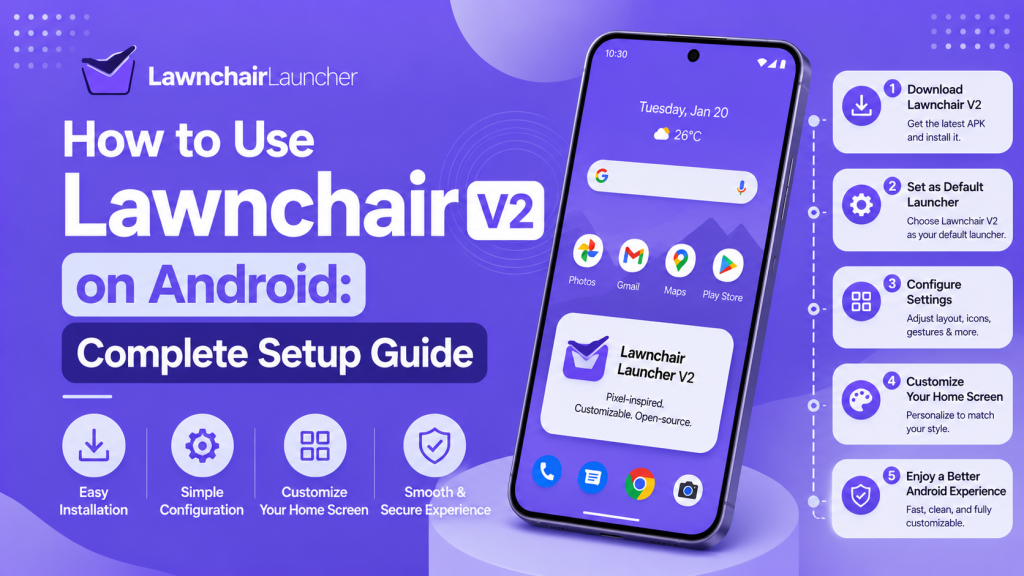
Download Lawnchair V2 from a trusted source, then open the downloaded APK file. Allow installation from the selected browser or file manager if Android asks for permission.
Tap Install and wait for the process to finish. After installation, open Lawnchair V2 and set it as your default Home app to begin using it.
How to Set Lawnchair V2 as the Default Launcher
Open Settings on your Android phone and go to Apps > Default Apps > Home App. Select Lawnchair V2 from the available launcher options.
You can also open Lawnchair V2, long-press an empty area on the home screen, and tap Home Settings. Select the prompt to make Lawnchair V2 your default launcher.
After choosing it, press the Home button or use the home gesture to confirm that Lawnchair V2 opens automatically.
How to Open Lawnchair V2 Settings
Press and hold an empty area on the Lawnchair home screen. Tap Home Settings or the settings icon that appears in the menu.
From this panel, you can manage the desktop layout, app drawer, dock, icons, themes, gestures, search bar, and other Lawnchair launcher options.
Customize the Home Screen
Lawnchair V2 lets you change the home screen layout to match your preferred style. Open Home Settings and select the desktop or home screen section to access the main options.
You can adjust the grid, icon appearance, widget placement, labels, and screen spacing. These settings help you create a cleaner and more organized layout.
Change Grid, Icons, and Widgets
Open the desktop layout settings and choose the number of rows and columns you want. A larger grid fits more apps, while a smaller grid creates more space between icons.
You can also change icon size, hide app labels, and add widgets by pressing and holding an empty area on the home screen. Drag each widget to the preferred position and resize it when supported.
Organize Apps and Folders
Press and hold an app icon, then drag it to a new position on the home screen. Place frequently used apps where they are easy to reach.
To create a folder, drag one app icon over another. Open the folder to rename it, add more apps, or rearrange the icons inside it.
Customize the App Drawer and Dock
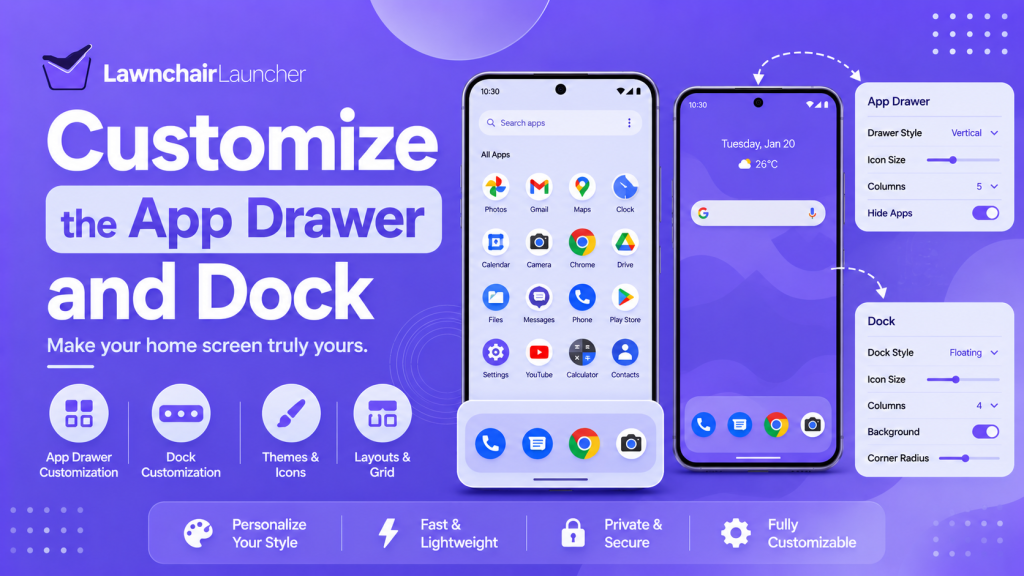
Lawnchair V2 allows you to adjust how apps appear in the app drawer and dock. Open Home Settings and select the related drawer or dock options.
You can change the layout, icon size, background appearance, search bar, and number of dock icons. These settings help keep important apps accessible while maintaining a clean home screen.
Change Layout and Hide Apps
Open Home Settings and select the app drawer settings. Adjust the number of rows, columns, icon sizes, and app labels to improve the layout.
Use the hidden apps option to remove selected apps from the drawer. This does not uninstall them from your phone.
Adjust the Dock and Search Bar
Open the dock settings to change the number of icons, icon size, background, and spacing. Add your most-used apps for quicker access.
You can also move, resize, customize, or disable the search bar if Lawnchair V2 provides these options on your device.
Set Up Gestures and Shortcuts
Open Home Settings and select Gestures. Choose an action for options such as swipe up, swipe down, double-tap, or pressing the Home button.
You can assign shortcuts to open the app drawer, notifications, search, phone settings, or a selected app. Test each gesture after saving it to make sure it works correctly.
Customize Themes and Icon Packs
Open Home Settings and go to the theme or appearance section. Choose a light, dark, or system-based theme to adjust the launcher’s visual style.
To apply an icon pack, install a compatible pack on your phone and select it from Lawnchair V2 settings. You can also change icon shapes, sizes, and labels to match your preferred home screen design.
Personalize the Visual Style of Lawnchair V2
Open Home Settings and go to the appearance or theme section. Choose a light, dark, or system-based theme according to your preference.
You can also apply a compatible icon pack, adjust icon shapes, change icon sizes, and manage app labels. These options help create a cleaner and more consistent home screen design.
Back Up and Restore Your Lawnchair V2 Setup
Open Lawnchair Settings and look for the backup and restore option. Create a backup of your home screen layout, folders, icons, and launcher preferences.
Save the backup file in a secure folder or cloud storage. You can use it later to restore your setup after reinstalling Lawnchair V2 or changing devices.
Troubleshoot Common Lawnchair V2 Issues
Lawnchair V2 may sometimes experience crashes, missing icons, broken widgets, or launcher resets. Start by restarting the phone and checking that Lawnchair V2 is still selected as the default Home app.
You should also review battery restrictions, app permissions, widget access, and launcher updates. If the issue continues, clear the app cache or restore a recent backup.
Resolve Default Launcher and Gesture Problems
Open Settings > Apps > Default Apps > Home App and confirm that Lawnchair V2 is selected. If Android switches back to the original launcher, select Lawnchair V2 again and restart the device.
For gesture problems, open Lawnchair Settings > Gestures and review each assigned action. Some system navigation gestures may conflict with launcher gestures, so test a different action when needed.
Fix Crashes, Missing Icons, and Widget Errors
Restart the phone and clear Lawnchair V2’s cache from its App Info page. Avoid clearing storage unless necessary because it may remove your saved launcher setup.
For missing icons, reapply the icon pack or restart Lawnchair. If a widget does not load, remove it from the home screen, add it again, and confirm that the required app permissions are enabled.
Frequently Asked Questions
Is Lawnchair V2 free to use?
Yes. Lawnchair V2 is a free Android launcher that provides a wide range of customization options. You can change the home screen layout, app drawer, dock, icon style, gestures, widgets, folders, and search bar without paying for a subscription.
Most users can access the main features without purchasing additional tools. However, some optional features may depend on third-party icon packs, widgets, or companion apps installed separately.
Does Lawnchair V2 require root access?
No. Lawnchair V2 does not require root access for normal use. You can install it, set it as the default launcher, organize apps, apply icon packs, add widgets, and configure gestures on a standard Android device.
Root access is only connected with advanced system-level modifications. It is not necessary for users who only want to customize the appearance and behavior of their home screen.
How do I set Lawnchair V2 as the default launcher?
Open your phone’s Settings and go to Apps > Default Apps > Home App. Select Lawnchair V2 from the available options.
You can also open Lawnchair V2, press and hold an empty area on the home screen, and tap Home Settings. Use the default launcher prompt if it appears, then select Lawnchair V2
Can Lawnchair V2 slow down my phone?
Lawnchair V2 is designed to work as a lightweight home screen replacement. However, performance can vary depending on your phone’s hardware, available memory, Android version, and customization settings.
Using several live widgets, complex icon packs, blur effects, animations, and background apps may increase resource usage. Reducing these features can improve performance on older or low-memory devices.
Why does Lawnchair V2 keep returning to the original launcher?
This problem may occur when Lawnchair V2 is not saved correctly as the default Home app. Battery optimization, background restrictions, system cleaning tools, or device management settings may also reset the launcher.
Go to Settings > Apps > Default Apps > Home App, then select Lawnchair V2 again. You should also remove battery restrictions and allow the launcher to run in the background.
Conclusion
Lawnchair V2 provides a practical way to customize the Android home screen without changing the operating system. It combines a clean interface with flexible controls for icons, folders, widgets, gestures, the app drawer, dock, grid, search bar, and visual appearance.
The setup process begins by installing Lawnchair V2 and selecting it as the default Home app. After that, users can open Home Settings and adjust each section as needed. A simple layout may focus on larger icons and fewer widgets, while an advanced setup may include custom gestures, icon packs, hidden apps, multiple folders, and detailed drawer settings.
It is useful to organize the home screen gradually instead of changing every setting at once. Start with the grid and icon size, arrange important apps, create folders, and then configure the dock, widgets, gestures, and appearance. This approach makes it easier to create a balanced layout and identify any setting that causes a problem.
Latest post